Editor
To edit a note, tap the Edit button in view mode.
Tip
To open notes directly in edit mode, set Settings > Editor > Default Mode to Edit.
The editor has a text area in the centre and a row of editor buttons at the bottom of the screen.
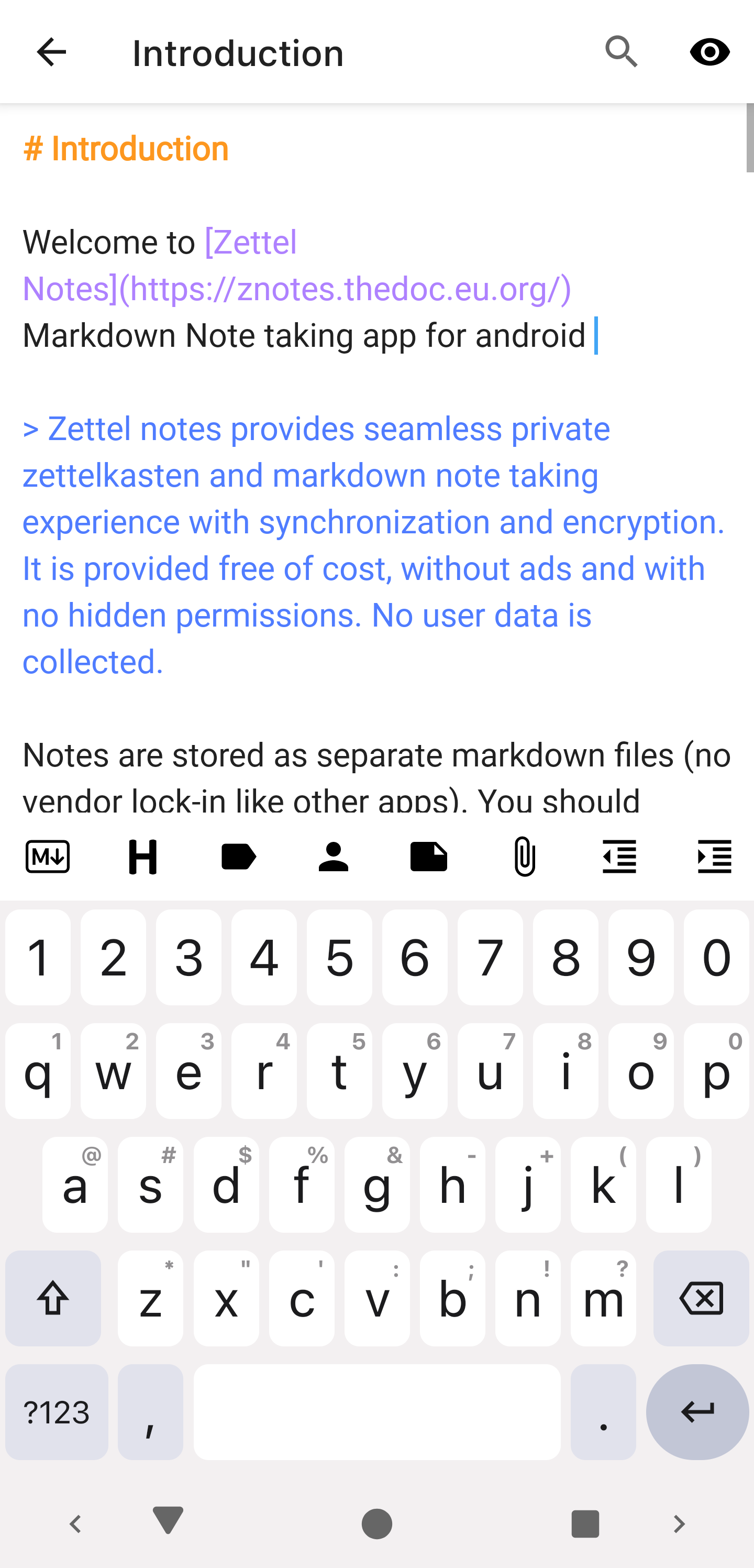
By default, the editor places the cursor at the last edited position. To change this, go to Settings > Editor and Viewer > Initial Cursor Position and choose one of:
- Start of note
- End of note
- Last edit position
- None (Don't set initial cursor)
Editor Buttons
The editor buttons are shown in a row at the bottom of the screen. You can scroll right and left to see them all, press and hold to see the title of a button, and use the Settings button to change the order in which they're shown.
Markdown Buttons
- This is the first editor button.
- Eleven Markdown buttons are provided by default.
- Clicking on the button will enter specific markdown format (e.g.
**for bold) in editor. - If you select some text and then click on markdown button, then that text will be surrounded with markdown format defined in the button.
- To add new markdown button, just select edit button (floating pencil button).
- Each Markdown button can have its own icon v2.8.3.
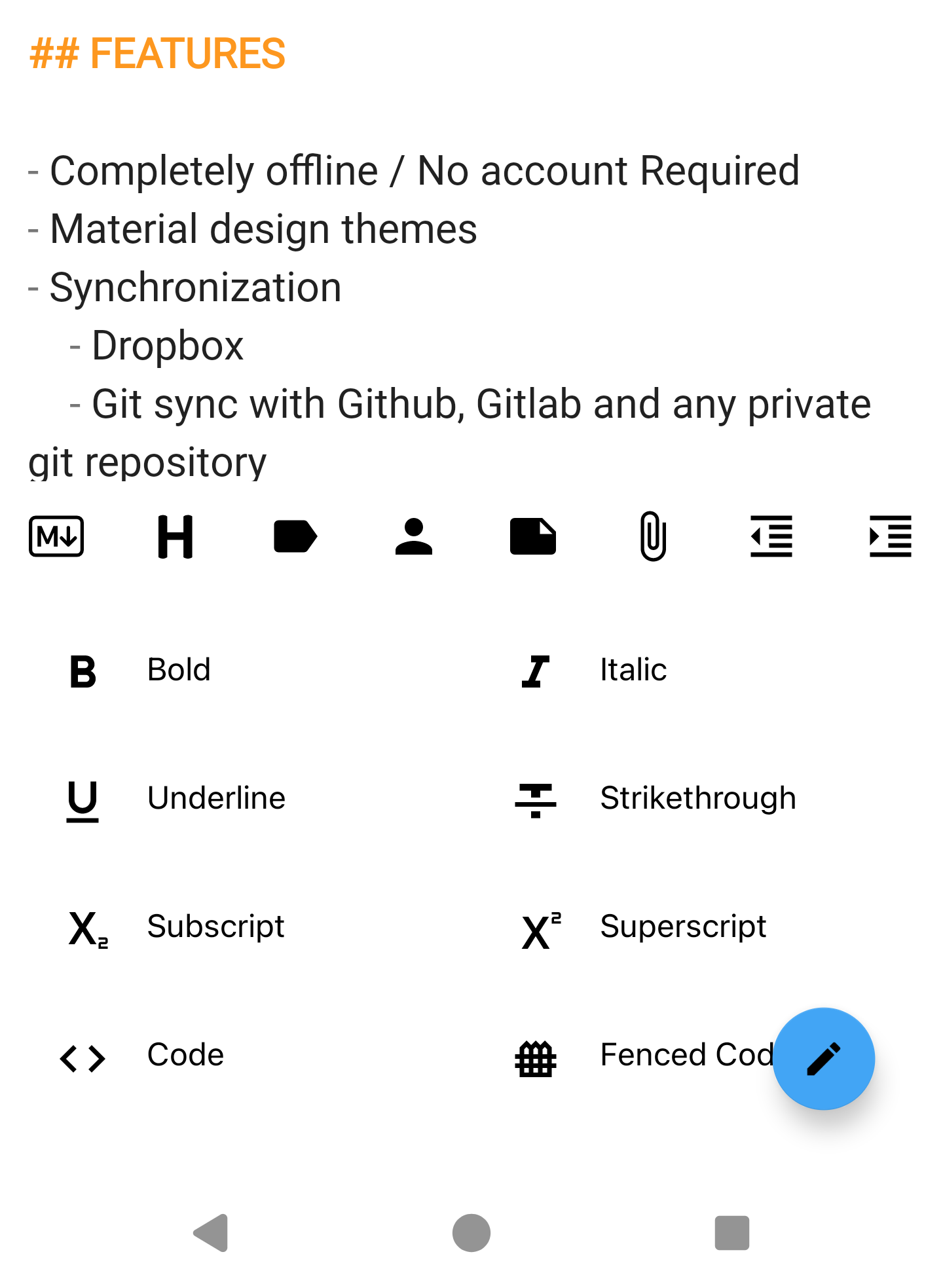
Heading button
- Click to insert heading format in front of line.
- You can remove heading or add heading from Level 1 to Level 6 heading.
Zettelkasten Buttons
- Insert Tag
- Insert Authors
- Insert Note Link
- Extract Note
Attachment button
The folder where attachments are stored is defined by attachment location in repository.
- Link
- Audio recording
- Drawing
- Camera Image
- File from storage
- Media file from Gallery
Info
You can also download the link, if it is an image file.
Text manipulation buttons
- Cut
- Copy
- Paste
- Undo
- Redo
- Lock / Unlock editing
- Wrap / Unwrap
- Text Settings
- Select Paragraph
- Toggle Keyboard
- Fullscreen
Line manipulation buttons
- Increase Indent
- Decrease Indent
- Select Line(s)
- Delete Line(s)
- Move Line up
- Move Line down
- Goto Previous Line
- Goto Next Line
Tip
If you long press Goto Previous Line or Goto Next Line buttons, selection will be set to start or end of file respectively.
Formatting and list buttons
- Toggle Blockquote on the selected lines v2.8.4
- Ordered List and Unordered List v2.8.3
- Toggle Checkbox, and Check / Uncheck All tasks
- Bold, italics, underline and highlight are also offered in the text selection menu
Navigation buttons
Search and replace
The search and replace button finds text in the note and replaces it. Regular expressions are supported v2.9.3, and the replacement can be empty to delete matches.
Other buttons
- Download online images: downloads online images in the note to local storage v2.4.4.
- Meta keys toolbar: shows a row of keys such as Ctrl and arrows, for keyboard shortcuts on touch screens v2.9.1.
- Clean sync tags: cleans up sync tags in the note v2.7.6.
- Memo: opens the Memo; long-press to add text to it.
- Add Icon: inserts an icon v2.8.3
Revision (Note History) Button
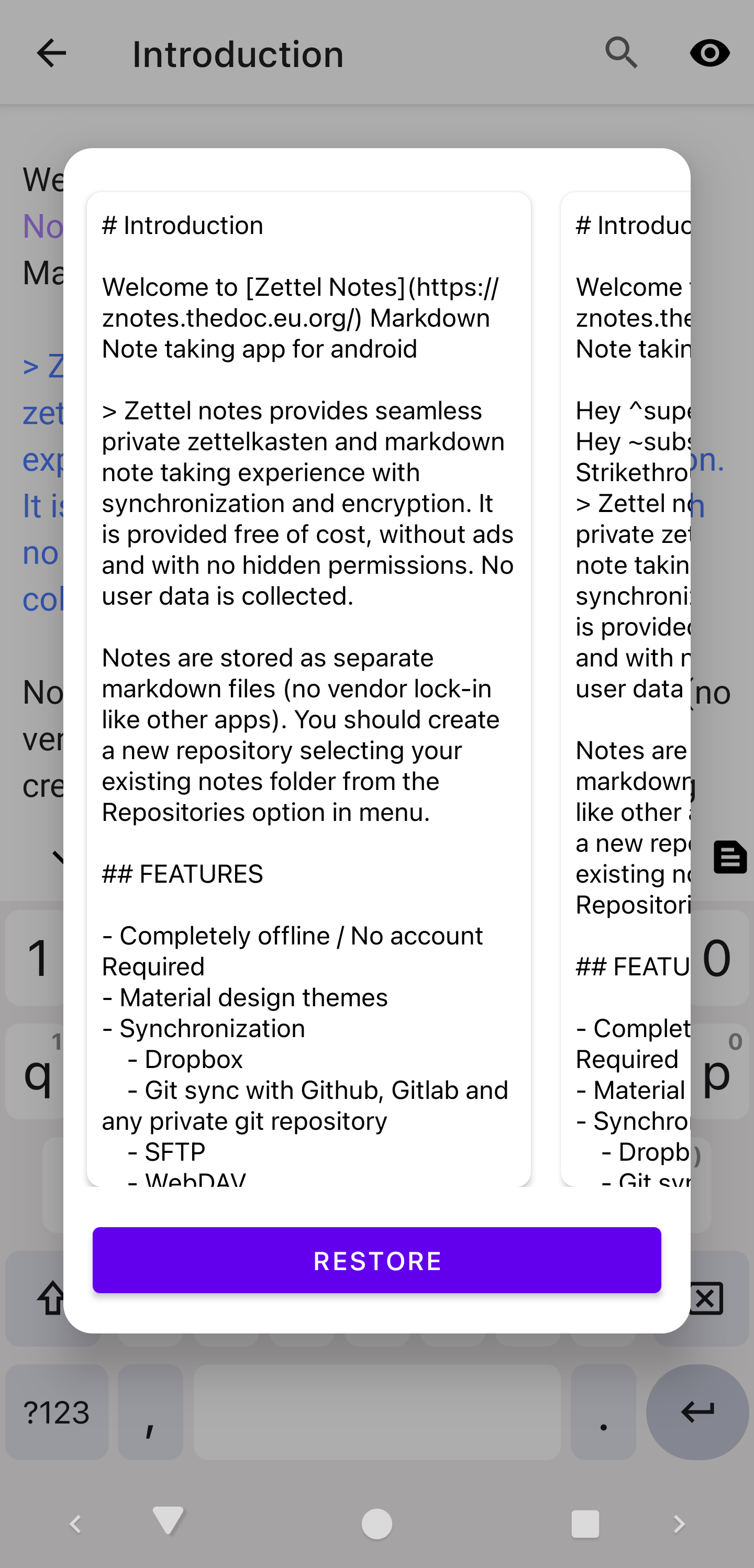
Zettel Notes stores patch or diff of changes made in a note. You can browse and restore previous revisions of a note with this button.
Coffee Button
Keeps the screen awake for a set time (5, 10 or 30 minutes). Tap to start; long-press to stop.
Text Snippets Button
A text snippet has 2 parts: Expander and Expansion. When a user taps on an expander, its expansion will be entered in the editor at the selected position.
For example, if the expander is otoh and the expansion is on the other hand, clicking on the expander otoh in Text Snippets will enter on the other hand in the editor. See the built-in "Heading with Subtasks" snippet for example.
The expander may also contain date and/or time placeholders in SimpleDateFormat; surrounding these with $$ will cause the expansion to expand them using the current date and time. For example, $$yyyy-MM-dd (EE)$$ will be expanded to the current date, formatted like 2024-07-26 (Fri).
To add a new text snippet or edit an existing one, just tap on the floating edit button.
Tip
You can quickly search for and insert text snippets by typing :? or :: while editing. Text snippets can also use the $uuid$ variable.
Citations Button
This button is integrated with BibTex manager
Click to enter citation and long press button to generate bibliography.
Emoji Button
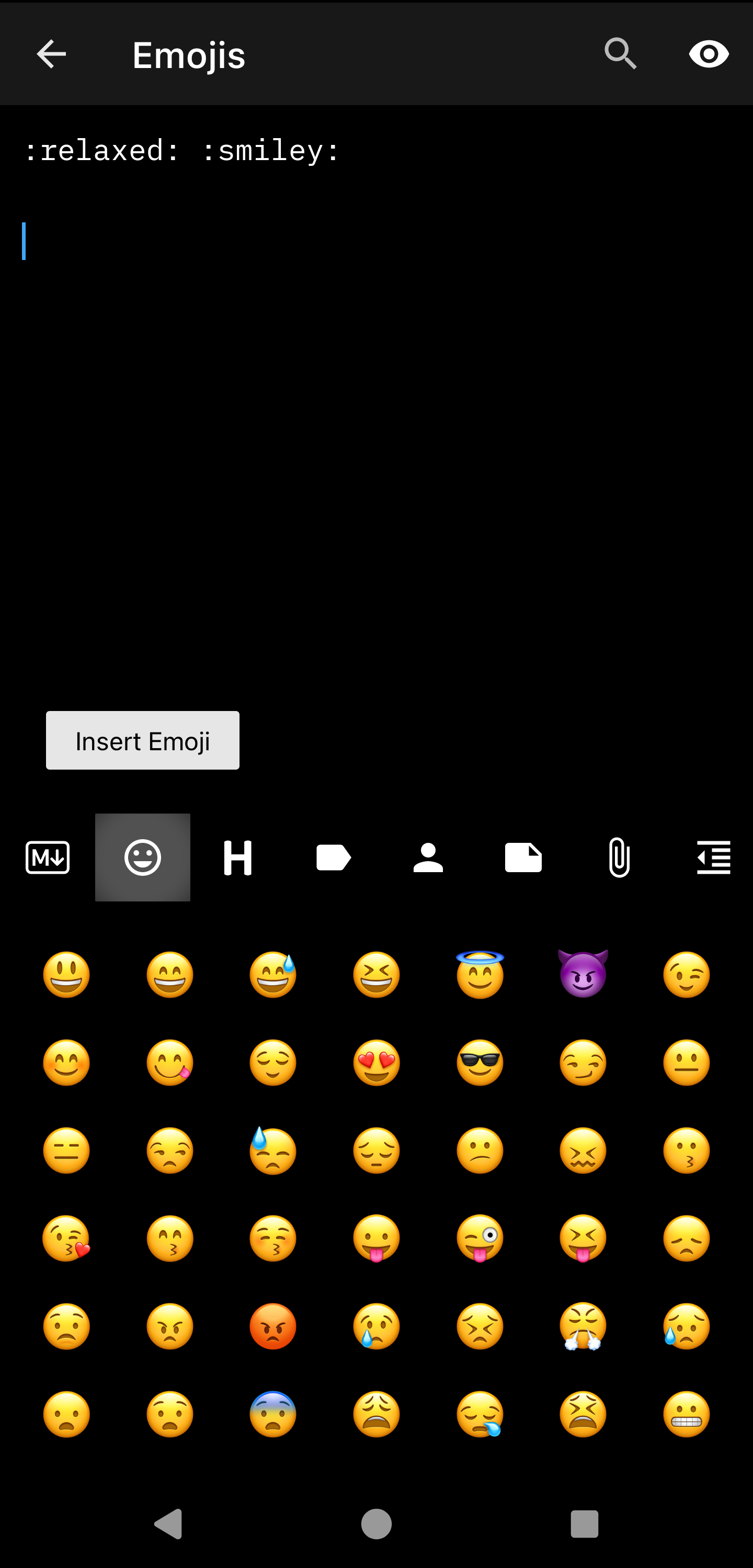
Application has support for converting Emoji alias (in edit mode) to emojis (in view mode). Eg. :smile: is converted to 😄 in view mode. Clicking on an emoji will insert its alias in editor.
Info
For full list of supported emojis and aliases, follow this link
Focus Mode Button
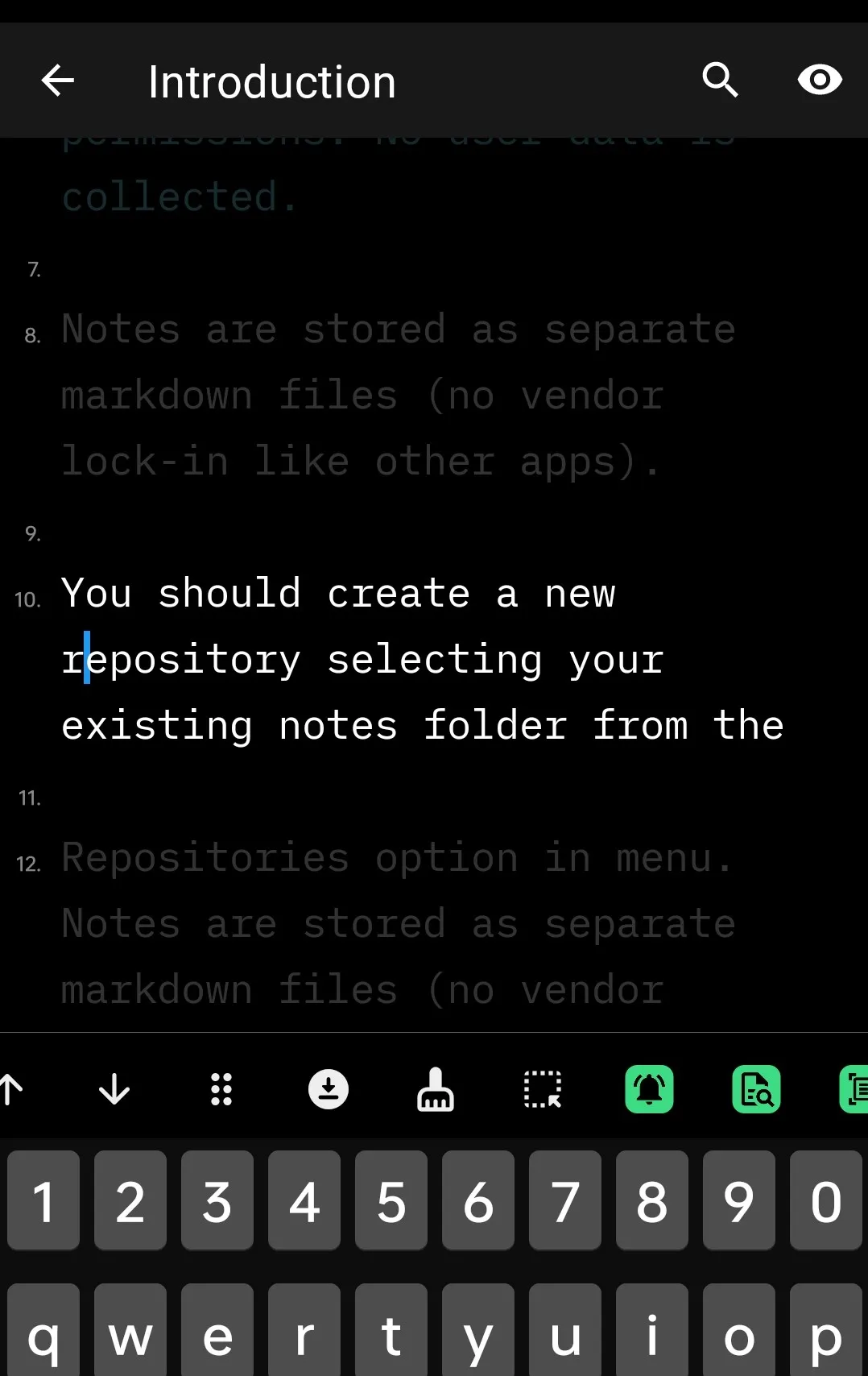
Click to enable / disable focus mode while editing.
Tip
You can enable Focus Mode for all notes from Settings > Editor and Viewer > Focus Mode.
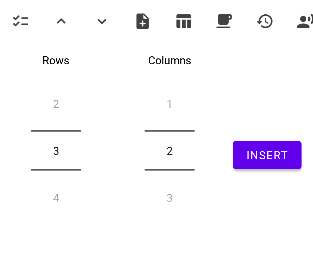
Insert Table Button
Settings Button
You can configure the order of editor buttons or enable / disable editor buttons with this button. Click on add button in setting screen to add groups. All the buttons below a group will be added in the group. Swipe a button to remove it from the toolbar.
Tip
Tap a group to change its icon and the number of columns it shows v2.8.4. The icon of every built-in button can be changed too.
The toolbar layout can be included in backups.
Typing shortcuts
Type these while editing to open a picker:
| Type | To insert |
|---|---|
[[ | a link to a note |
#? | a tag |
@? | an author |
:? or :: | a text snippet |
The trigger text can be changed, and given several aliases separated by spaces, in Settings > Editor and Viewer > Text Shortcuts v3.0.0. They can also be turned off.
Links in the editor
Long-press a link in the editor to open it v2.9.6. In view mode, long-press a link to see its URL.
Editor settings
These options are in Settings > Editor and Viewer:
| Setting | Effect |
|---|---|
| Auto-Save when Idle | Saves the note automatically after a pause; the timeout can be changed |
| Large headings | Shows headings in proportionate sizes while editing |
| Line numbers | Shows line numbers in the editor |
| Line wrap | Wraps long lines in the editor and viewer |
| Margins | Changes the note margins |
| Spellcheck | Turns the keyboard spellchecker on or off |
| Automatic list numbering | Continues ordered lists automatically |
| Highlight double-space endings | Marks lines ending with two spaces (a Markdown line break) v3.0.8 |
| Focus Mode | Enables focus mode for all notes |
A YAML checker in the editor flags invalid frontmatter v2.7.8.